
Chapter 10: PNG & WEBP Output
Contents
10.1 PNG & WEBP Format Overview
10.1.1 PNG
The Portable Network Graphics format, or PNG, is based on a lossless compression algorithm and supports a variety of color schemes including true colors. This makes it a viable alternative to both JPEG and GIF formats.
JPEG's lossy compression algorithm works well on photographs but performs quite poorly on images with sharp edges, such as drawings, charts and graphs. The "random art" image below was saved as JPEG and PNG. The former shows some unsightly artifacts while the latter is nice and clean.
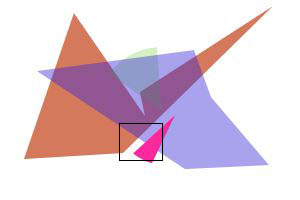

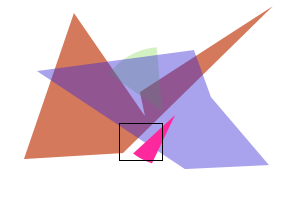

Unless animation is needed, PNG is a much better alternative to GIF as well. While the latter uses lossless compression, it only supports palettes of up to 256 colors and therefore is unsuitable for high-quality photographic images. PNG, on the other hand, supports both palette-based and true colors. PNG's support for transparency is far better than GIF's as well.
Unlike any other common image format, PNG allows for the partial transparency of individual pixels by optionally storing a 4th data channel, also known as the alpha channel, for each pixel in addition to the RGB data. The use of the alpha channel for image stamping was covered in Section 6.3 of this user manual.
10.1.2 WEBP
As of Version 2.9.0.2, AspJpeg supports the WEBP image format both for input and output.
WEBP is a modern image format developed by Google. It provides superior lossy and lossless compression for images on the web. WEBP outperforms the antiquated JPEG, PNG and GIF formats in pretty much every respect. It supports both lossy and lossless compression, an alpha channel and animation, while producing image files that are significantly smaller than those saved in the traditional formats.
While the discussions and code samples in this chapter focus on the PNG format, they apply equally to WEBP as well.
10.2 AspJpeg's Support for PNG & WEBP Output
Starting with version 2.1, AspJpeg is capable of saving images in PNG format. All you need to do is set the property PNGOutput to True before calling Save (or SendBinary/Binary).
If the currently opened image has an alpha channel, it will be automatically preserved when the image is saved as a PNG. If the image is resized, its alpha channel is resized also.
The following code sample resizes the sample PNG image realty.png used in Chapter 6 and preserves its alpha channel.
Jpeg.Open Server.MapPath("../images/realty.png")
' resize by 50%
Jpeg.PreserveAspectRatio = True
Jpeg.Width = Jpeg.OriginalWidth / 2
' Output as PNG
Jpeg.PNGOutput = True
' Save
Jpeg.Save Server.MapPath("realty_small.png")
objJpeg.Open( Server.MapPath("../images/realty.png") );
// resize by 50%
objJpeg.PreserveAspectRatio = 1;
objJpeg.Width = objJpeg.OriginalWidth / 2;
// Output as PNG
objJpeg.PNGOutput = 1;
// Save
objJpeg.Save( Server.MapPath("realty_small.png") );
Click the links below to run this code sample:

Support for WEBP output was introduced in Version 2.9.0.2. To switch from PNG to WEBP output, the line
needs to be replaced with
WEBP output uses lossy compression by default. To specify lossless compression, the Baseline property needs to be set to False:
Jpeg.Baseline = False ' Lossless
10.3 Alpha Channel Management
AspJpeg enables you to set a new alpha channel for the image, and also remove an existing one, via the methods SetAlpha and RemoveAlpha, respectively. It also allows you to modify the alpha channel in several ways.
10.3.1 SetAlpha and RemoveAlpha Methods
The SetAlpha method expects two arguments: an instance of the ASPJpeg object representing the alpha channel, and a Boolean flag specifying whether the alpha values should be inversed.
The image representing the alpha channel must have the same dimensions as the image to which it is assigned, and be in grayscale colorspace (i.e. 1 byte per pixel.) If the 2nd argument is False, the color value of 0 (black) of the alpha channel image corresponds to full transparency, and the color value of 255 (white) to full opacity. If the 2nd argument is True, 255 corresponds to full transparency and 0 to full opacity.
For example, the following code snippet creates a red image with a fully transparent round hole by using another image with a filled circle as the alpha channel:
Jpeg.New 100, 100, &HFFFF0000 ' red background
Set Alpha = Server.CreateObject("Persits.Jpeg")
Alpha.New 100, 100, &HFFFFFFFF
Alpha.Canvas.DrawCircle 50, 50, 30
Alpha.ToGrayscale (0)
Jpeg.SetAlpha Alpha, False
Jpeg.PNGOutput = True
Jpeg.Save "c:\path\out.png"
IASPJpeg objAlpha = new ASPJpeg();
objJpeg.New( 100, 100, 0xFFFF0000 );
objAlpha.New( 100, 100, 0xFFFFFFFF );
objAlpha.Canvas.DrawCircle( 50, 50, 30 );
objAlpha.ToGrayscale(0);
objJpeg.SetAlpha( (ASPJpeg)objAlpha, false );
objJpeg.PNGOutput = 1;
objJpeg.SaveUnique( @"c:\path\out.png" );
Here is the output image shown on a blue background with a white border to make its transparency more obvious:

If the 2nd argument to SetAlpha is changed to True, the output will be as follows:

The alpha channel image must be in the grayscale color space. That is why the script above calls the method ToGrayscale (introduced in Version 2.1 also.) Failure to call this method would result in an exception since images created with the New method are always RGB.
The SetAlpha method also allows the 1st argument to be Nothing (null.) In that case, the alpha channel will be set evenly to 255 (full opacity) for all pixels if the 2nd argument is False, and to 0 (full transparency) if True.
To remove an existing alpha channel, call RemoveAlpha. This method has no arguments. If the current image has no alpha channel, calling this method has no effect. To check if the current image has an alpha channel, use the Boolean property AlphaExists.
10.3.2 AlphaPixels Property
You can read and change the individual pixels of the current alpha channel via the parameterized property AlphaPixels, for example:
or
The property sets and returns values in the range 0 to 255.
10.3.3 Drawing on Images with Alpha Channel
Various Canvas methods such as DrawLine or PrintTextEx can be used on an image whether it has an alpha channel or not. However, if the graphics or text being drawn falls on a fully transparent area of the image, it will not be visible on the resultant PNG.
To ensure the 100%-visibility of the text or graphics being drawn, the alpha channel has to be modified also to provide an opaque background for the drawing. The same text or graphics needs to be drawn separately on the alpha channel in white color (which designates full opacity).
The method AlphaToImage turns the alpha channel of an image into an independent image with a Canvas object of its own, which can be drawn on.
The following code snippet opens a PNG image with an alpha channel, separates its alpha channel into a separate ASPJpeg object, draws some text on the original image and the alpha channel image, and merges the modified alpha channel with the original image, thus ensuring that the text is fully visible on the resultant PNG.
Jpeg.Open Server.MapPath("../images/realty.png")
Font = Jpeg.WindowsDirectory & "\Fonts\Arial.ttf"
' Print on image
Jpeg.Canvas.PrintTextEx "Some text", 50, 20, Font
' Print on alpha channel by creating a separate object
Set Alpha = Server.CreateObject("Persits.Jpeg")
Alpha.Open Server.MapPath("../images/realty.png")
Alpha.AlphaToImage ' populate image with alpha channel
Alpha.ToRGB ' make it RGB so that we can print on it
Alpha.Canvas.Font.Color = &HFFFFFFFF ' white color!
Alpha.Canvas.PrintTextEx "Some text", 50, 20, Font
Alpha.ToGrayscale(1) ' turn back into grayscale
Jpeg.SetAlpha Alpha, False
' Output as PNG
Jpeg.PNGOutput = True
' Save
Jpeg.Save Server.MapPath("realty_small.png")
string strFont = objJpeg.WindowsDirectory + @"\Fonts\Arial.ttf";
objJpeg.Open( Server.MapPath("../images/realty.png") );
// Print on image
objJpeg.Canvas.PrintTextEx( "Some text", 50, 20, strFont );
// Print on alpha channel by creating a separate object
IASPJpeg objAlpha = new ASPJpeg();
objAlpha.Open( Server.MapPath("../images/realty.png") );
objAlpha.AlphaToImage(); // populate image with alpha channel
objAlpha.ToRGB(); // make it RGB so that we can print on it
objAlpha.Canvas.Font.Color = 0xFFFFFF; // white color!
objAlpha.Canvas.PrintTextEx( "Some text", 50, 20, strFont );
objAlpha.ToGrayscale(1); // turn back into grayscale
objJpeg.SetAlpha( (ASPJpeg)objAlpha, false );
// Output as PNG
objJpeg.PNGOutput = 1;
// Save
objJpeg.Save( Server.MapPath("realty_small.png") );
Click the links below to run this code sample:
10.3.4 Alpha Channel Flattening
As of Version 2.7, AspJpeg offers the method FlattenAlpha which applies the image's alpha channel to its pixels in combination with the specified background color and then removes the alpha channel, thus effectively "flattening" the image. The method has the same effect as drawing the image on top of a monochrome background of equal size.
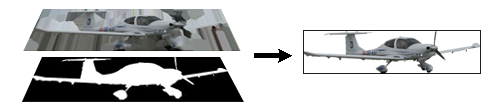
The FlattenAlpha method expects a single argument, the background color in the form of a long integer.
If the image has no alpha channel, this method has no effect. This method is useful for converting arbitrary PNG images (regardless of their alpha channel presence) to JPEG format.
For example:
10.3.5 Alpha Channel for GIF Images
As of Version 2.7.0.6, AspJpeg treats GIF images with a transparency as if they were PNG images with an alpha channel. That is, when Jpeg.Open/OpenBinary is called on a GIF image which contains a transparency color, the property Jpeg.AlphaExists returns True and all alpha-related methods described above are available. This makes it easy to convert a GIF image with a transparency to a PNG image with an alpha channel and also perform cropping, rotation and other operations on a GIF image while preserving its transparency information.
10.4 Using PNG Format for Image Rotation
As of Version 2.3, AspJpeg is capable of rotating images by an arbitrary degree via the method Rotate. The method expects two arguments: the rotation angle in degrees, and fill color. When this method is called, the original image is rotated and the image canvas is increased both horizonally and vertically to accommodate the slanted picture. The four triangular corner areas thus formed are filled with the specified color. For example:
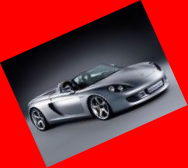
If the rotated image is to be drawn on top of another picture, the corner areas should usually be removed entirely. The Rotate method achieves this by creating an alpha channel for the rotated image making the corner areas fully transparent. To take advantage of the alpha channel, the rotated image needs to be saved in PNG format (i.e. the PNGOutput property should be set to True.)
The PNG image can then be drawn on top of another picture via the DrawPNG method of the Canvas object as described in Section 6.3. To avoid creating a temporary file on disk, the PNG can be saved to memory via the Binary property and drawn via the DrawPNGBinary method.
The following image was created by the script below.
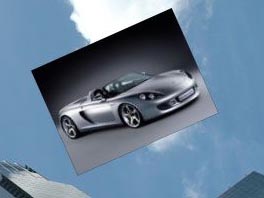
RotatedImg.Open Server.MapPath(".") & "/../images/porsche.jpg"
' Rotate 24 degrees, black background
RotatedImg.Rotate 24, 0
' Output as PNG to take advantage of alpha channel hiding corners
RotatedImg.PNGOutput = True
' Create another instance of AspJpeg
Set Jpeg = Server.CreateObject("Persits.Jpeg")
Jpeg.Open Server.MapPath(".") & "/../images/photo.jpg"
Jpeg.Canvas.DrawPNGBinary 410, 50, RotatedImg.Binary
Jpeg.Save Server.MapPath("rotatedinpicture.jpg")
IASPJpeg objRotatedImg = new ASPJpeg();
objRotatedImg.Open( Server.MapPath("../images/porsche.jpg" ) );
// Rotate 24 degrees, black background
objRotatedImg.Rotate( 24, 0x00 );
// Output as PNG to take advantage of alpha channel hiding corners
objRotatedImg.PNGOutput = 1;
// Create another instance of AspJpeg
IASPJpeg objJpeg = new ASPJpeg();
objJpeg.Open( Server.MapPath("../images/photo.jpg") );
objJpeg.Canvas.DrawPNGBinary( 410, 50, objRotatedImg.Binary );
objJpeg.Save( Server.MapPath("rotatedinpicture.jpg") );
Click the links below to run this code sample:

