
Chapter 7: Metadata Extraction
Contents
7.1 Metadata Overview
Most digital cameras nowadays embed various pieces of information into the JPEG images they generate, including the current date/time, shooting conditions (e.g. whether a flash was used), camera settings (shutter, aperture, focal length), etc. Adobe Photoshop, the leading image editing package, is also capable of embedding various pieces of metadata into the JPEGs it produces, such as an author, title, copyright notice, etc.
The format for camera-embedded metadata is called EXIF, which stands for Exchangeable Image File Format. The format used by Photoshop is described by the International Press Telecommunications Council (www.iptc.org) and usually referred to as IPTC.
AspJpeg 1.4+ is capable of extracting EXIF and IPTC metadata from JPEG images via the OpenInfo and OpenInfoBinary methods. The difference between the two is the same as between Open and OpenBinary - the former opens a source image from disk, the latter from memory.
UPDATE: As of AspJpeg 2.9.0.2, metadata can be retrieved from PNG images as well, and the code is exactly the same. Metadata preservation and editing (described below) is still limited to JPEG files, however.
The OpenInfo and OpenInfoBinary methods both return an instance of the Info object which is a collection of InfoItem objects, each representing a separate EXIF or IPTC field. The InfoItem object supports the following properties: Name (String), Value (Variant, default property), Tag (Integer), and Description (String).
The following code sample extracts and displays all metadata fields from a JPEG image:
' Directory with images
Path = Server.MapPath("../images/photo.jpg")
Set Jpeg = Server.CreateObject("Persits.Jpeg")
' Open image for metadata exraction
Set Info = Jpeg.OpenInfo( Path )
' Display collection of items
For Each Item in Info
Response.Write "<TR><TD>"
Response.Write Item.Name & "</TD><TD>"
Response.Write Item.Description & "</TD><TD>"
Response.Write Item.Value & "</TD>"
Response.Write "</TD></TR>"
Next
%>
void Page_Load(Object Source, EventArgs E)
{
IASPJpeg objJpeg;
objJpeg = new ASPJpeg();
// Compute path to source image
String strPath = Server.MapPath("../images/photo.jpg");
// Open source image for metadata exraction
IInfo objInfo = objJpeg.OpenInfo( strPath );
foreach( IInfoItem objItem in objInfo )
{
TableRow objRow = new TableRow();
TableCell objCell1 = new TableCell();
objCell1.Controls.Add( new LiteralControl( objItem.Name ) );
TableCell objCell2 = new TableCell();
objCell2.Controls.Add(new LiteralControl(objItem.Description));
TableCell objCell3 = new TableCell();
objCell3.Controls.Add(
new LiteralControl( objItem.Value.ToString() ) );
objRow.Cells.Add( objCell1 );
objRow.Cells.Add( objCell2 );
objRow.Cells.Add( objCell3 );
objTable.Rows.Add( objRow );
}
}
</script>
Click the links below to run this code sample:

To obtain a value for a specific metadata field, such as a camera make, you should use Info's default Item property which accepts this field's name as an index. Since Item is the default property, the word "Item" can be omitted. In C#, square brackets must be used. The following code snippet obtains camera make information and assigns it to a string variable:
s = Info("Make")
All valid EXIF and IPTC field names are listed below.
7.2 EXIF Item List
The following table lists all valid EXIF field names and descriptions. Most real-world images only contain a small subset of these items, if any. Note that in addition to general image and camera setting information, EXIF also provides for GPS-related data.
In addition to the pre-defined fields, some images may contain custom fields not described in the EXIF specifications. Custom field names have the form Tag#nnn where nnn is a decimal number, e.g. Tag#37388.
7.3 IPTC Item List
The following IPTC fields are supported by AspJpeg:
IptcByline
IptcBylineTitle
IptcCredits
IptcSource
IptcObjectName
IptcDateCreated
IptcCity
IptcState
IptcCountry
IptcOriginalTransmissionReference
IptcCopyrightNotice
IptcCaption
IptcCaptionWriter
IptcHeadline
IptcSpecialInstructions
IptcCategory
IptcSupplementalCategories
IptcUrgency
IptcKeywords
IptcTimeCreated
IptcDigitalCreationDate
IptcDigitalCreationTime
IptcOriginatingProgram
IptcProgramVersion
IptcUno
IptcEditStatus
IptcFixtureIdentifier
IptcReleaseDate
IptcReleaseTime
IptcObjectCycle
IptcImageNotes
IptcTextSaved
IptcCustom1
IptcCustom2
IptcCustom3
IptcCustom4
IptcCustom5
IptcCustom6
IptcCustom7
IptcCustom8
IptcCustom9
IptcCustom10
IptcCustom11
IptcCustom12
IptcCustom13
IptcCustom14
IptcCustom15
IptcCustom16
IptcCustom17
IptcCustom18
IptcCustom19
IptcCustom20
IptcImageURL
IptcCopyrighted
IptcXMP
Note: The IptcKeywords field may appear multiple times in the Info collection. IptcCopyrighted was introduced in version 2.0 of AspJpeg and is a True/False value. IptcXMP was introduced in version 2.7.0.5 and is described below.
7.4 TIFF Support
If the image being opened is a TIFF, the Info collection will contain a special field by the name of "TiffPages" which contains the number of pages (images) in that TIFF file. This value can be used to iterate through all images in a multi-page TIFF. To open an image with an index other than 1, the property TiffIndex should be used, as follows:
path = "c:\path\multipage.tif"
Set Info = jpeg.OpenInfo(path)
nPages = Info("TiffPages")
For i = 1 To nPages
jpeg.TiffIndex = i
jpeg.Open path
jpeg.Save "c:\path\" & i & ".jpg"
Next
%>
7.5 Metadata Preservation
Starting with Version 1.9, AspJpeg is capable of preserving the Exif and IPTC metadata of the original image when a thumbnail is created. To enable this functionality, you need to set the property PreserveMetadata to True before opening the image, as follows:
Set Jpeg = Server.CreateObject("Persits.Jpeg")
Jpeg.PreserveMetadata = True
Jpeg.Open Path
...
%>
As of version 2.4, AspJpeg is also capable of preserving the ICC profile of the original image. For more information on the International Color Consortium and ICC profiles, visit www.color.org.
...
Jpeg.PreserveICCProfile = True
...
%>
The PreserveMetadata and PreserveICCProfile properties must be set before calling Open or OpenBinary, an exception will be thrown otherwise.
Note that preserving metadata and ICC profiles in a thumbnail can considerably increase its file size.
7.6 Metadata Editing
As of Version 2.0, AspJpeg can be used to add or replace IPTC values in an image via the method AddMetadataItem. This method accepts two arguments: an IPTC tag from the table shown in Section 7.3 above, and a string value to be inserted under that tag. This method can be called multiple times, if necessary. To use AddMetadataItem, the property PreserveMetadata described in the previous section must be set to True before the image is opened:
Set Jpeg = Server.CreateObject("Persits.Jpeg")
Jpeg.PreserveMetadata = True
Jpeg.Open Path
Jpeg.AddMetadataItem "IptcCaption", "New York City Skyline"
Jpeg.AddMetadataItem "IptcCaptionWriter", "John Smith"
...
Jpeg.Save ...
%>
All IPTC fields are strings with one exception: the IptcCopyrighted tag introduced in version 2.0 is an on/off flag. Use the string "True" to set this flag or "False" to clear it.
As of Version 2.0.0.1, you can add multiple IptcKeywords entries to an image by using the special tag "IptcKeywordsAdd". Unlike "IptcKeywords", it adds a new keyword entry instead of replacing an existing one. For example, the code snippet
Jpeg.AddMetadataItem "IptcKeywordsAdd", "Portrait"
adds two keyword entries to an image, "Art" and "Portrait", whereas the snippet
Jpeg.AddMetadataItem "IptcKeywords", "Portrait"
only adds a single entry, "Portrait" ("Art" is overwritten.)
As of Version 2.1, there is another special tag, "IptcKeywordsRemove", which removes all keyword entries. In previous versions, it was not possible to completely remove all existing keywords from an image, only overwrite (or clear) the last keyword entry while leaving all others intact. The IptcKeywordsRemove tag is to be used as follows:
As of Version 2.9, most EXIF tags can be modified as well. See Section 7.8 below for more information.
As of Version 2.9.0.5, the entire EXIF block in an image can be replaced or inserted by calling the AddMetadataItem method with the first argument set to the special tag "Exif" and the second argument to a Hex-encoded string containing the EXIF block. This feature was added to help preserve EXIF metadata while converting HEIC images to JPEG with the help of AspHEIF. For more info, see Code Example 4 of the AspHEIF User Manual.
7.7 Adobe XMP Support
In addition to EXIF and IPTC information described above, JPEG images often contain metadata based on Adobe's Extensible Metadata Platform (XMP) specifications. XMP metadata uses the XML format.
Typical XMP data embedded in a JPEG image may look as follows (the right side of the XML code is truncated for brevity):
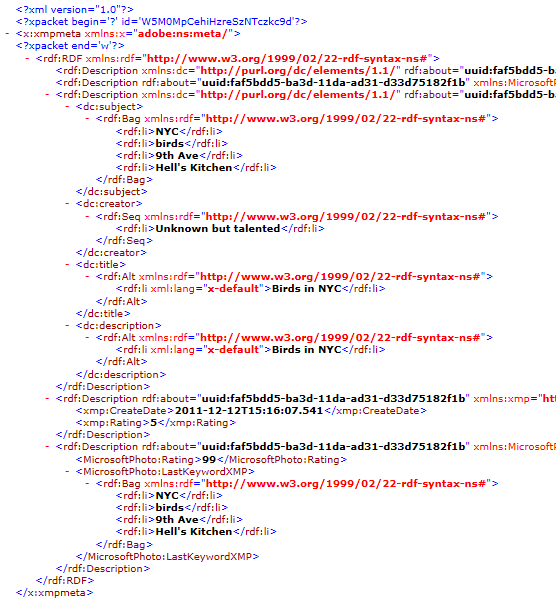
As of version 2.7.0.5, AspJpeg is capable of retrieving and setting the XMP metadata in its entirety as if it were a regular IPTC tag, via the Info collection and AddMetadataItem method. The name of the tag is "IptcXMP". It is the application developer's responsibility to perform XML parsing to retrieve and set various components of the XMP metadata. XML processing can be performed quite easily using the Microsoft.XMLDOM object in classic ASP and XmlDocument object in .NET.
For the IptcXMP item to be accessible via the Info collection, you must set the property Jpeg.PreserveMetadata to True before calling Jpeg.Open/OpenBinary.
The following code sample retrieves XMP data from an image, changes the value of the dc:creator item and plugs the modified XML string back into the image. The .NET code snippet requires that the System.Xml namespace be imported.
Jpeg.PreserveMetadata = true
Path = "c:\path\birds.jpg"
Jpeg.Open Path
Set Info = Jpeg.OpenInfo( Path )
Set XmlDom = Server.CreateObject("Microsoft.XMLDOM")
XmlDom.Async = False ' need synchronous operation
XmlDom.LoadXml( Info("IptcXMP") )
Set XmlNode = XmlDom.DocumentElement.SelectSingleNode ("rdf:RDF/rdf:Description/dc:creator/rdf:Seq/rdf:li")
XmlNode.text = "John Smith"
Jpeg.AddMetadataItem "IptcXMP", XmlDom.xml
Jpeg.SaveUnique "c:\path\out.jpg"
objJpeg.PreserveMetadata = 1;
string strPath = @"c:\path\birds.jpg";
objJpeg.Open( strPath );
IInfo objInfo = objJpeg.OpenInfo( strPath );
XmlDocument XmlDom = new XmlDocument();
XmlDom.LoadXml( objInfo["IptcXMP"].Value.ToString() );
XmlNamespaceManager objMgr = new XmlNamespaceManager(XmlDom.NameTable);
objMgr.AddNamespace("rdf", "http://www.w3.org/1999/02/22-rdf-syntax-ns#");
objMgr.AddNamespace("dc", "http://purl.org/dc/elements/1.1/");
objMgr.AddNamespace("x", "http://www.w3.org/1999/02/22-rdf-syntax-ns#");
XmlNode node = XmlDom.DocumentElement.SelectSingleNode ("rdf:RDF/rdf:Description/dc:creator/rdf:Seq/rdf:li", objMgr);
node.InnerText = "John Smith";
objJpeg.AddMetadataItem( "IptcXMP", XmlDom.InnerXml );
objJpeg.SaveUnique( @"c:\mpath\out.jpg" );
The following code snippet adds a new keyword to the dc:subject list:
Set XmlNode = XmlDom.DocumentElement.SelectSingleNode ("rdf:RDF/rdf:Description/dc:subject/rdf:Bag")
Set NewNode = XmlDom.createNode( 1, "rdf:li", "http://www.w3.org/1999/02/22-rdf-syntax-ns#")
NewNode.text = "John Smith" & chrw( &H0416 )
XmlNode.AppendChild( NewNode )
...
XmlNode XmlNode = XmlDom.DocumentElement.SelectSingleNode( "rdf:RDF/rdf:Description/dc:subject/rdf:Bag", objMgr);
XmlNode NewNode = XmlDom.CreateNode( XmlNodeType.Element, "rdf:li", "http://www.w3.org/1999/02/22-rdf-syntax-ns#");
NewNode.InnerText = "John Smith";
XmlNode.AppendChild( NewNode );
...
7.8 EXIF Editing
7.8.1 ChangeExifItem Method
As of Version 2.9, AspJpeg is capable of setting or modifying most EXIF fields in an image via the method ChangeExifItem. This method expects three arguments: the EXIF field name to modify (see Section 7.3 for the list of valid names), the double-precision value to set a numeric field to, and an optional string value to set a text field to. The 3rd argument must be specified if the EXIF field specified by the first argument is of the EXIF type ASCII or UNDEFINED, in which case the 2nd argument is ignored. To be able to use the ChangeExifItem method, the property PreserveMetadata must be set to True before opening the image.
The image does not need to have existing EXIF information for the ChangeExifItem method to work. If the image has no EXIF data block to begin with, the method creates it.
The GPS-related coordinate and timestamp values (GPSLatitude, GPSLongitude, GPSDestLatitude, GPSDestLongitude, and GPSTimeStamp) must be specified in a decimal form. Positive values correspond to the North latitudes and East longitudes, and negative values to the South latitudes and West longitudes. The latitude/longitude reference fields such as GPSLongitudeRef or GPSDestLongitudeRef should not be set directly.
The following code snippet sets the Artist and Software information for the image to arbitrary text values. It also sets the GPS coordinates of the image to the center of Canberra, Australia, GPS timestamp to 14:30 and GPS date stamp, a text field, to "2016:08:22".
Jpeg.PreserveMetadata = True
Jpeg.Open Path
Jpeg.ChangeExifItem "Artist", 0, "John Smith"
Jpeg.ChangeExifItem "Software", 0, "Persits Software, Inc."
Jpeg.ChangeExifItem "GPSLatitude", -35.2809
Jpeg.ChangeExifItem "GPSLongitude", 149.13
Jpeg.ChangeExifItem "GPSTimeStamp", 14.5
Jpeg.ChangeExifItem "GPSDateStamp", 0, "2016:08:22"
Jpeg.SaveUnique "c:\path\out.jpg"
objJpeg.PreserveMetadata = 1;
objJpeg.Open( strPath );
objJpeg.ChangeExifItem( "Artist", 0, "John Smith" );
objJpeg.ChangeExifItem( "Software", 0, "Persits Software, Inc." );
objJpeg.ChangeExifItem( "GPSLatitude", -35.2809d, Missing.Value );
objJpeg.ChangeExifItem( "GPSLongitude", 149.13d, Missing.Value );
objJpeg.ChangeExifItem( "GPSTimeStamp", 14.5d, Missing.Value );
objJpeg.ChangeExifItem( "GPSDateStamp", 0, "2016:08:22" );
objJpeg.SaveUnique( @"c:\path\out.jpg" );
7.8.2 ApplyOrientation Method
Most digital images store their pixel information in "standard" orientation: the 0th row of pixels corresponds to the top of the image, and the 0th column of pixels to the left side of the image. However, when the camera or mobile device taking the picture is turned sideways or upside-down, the resultant image may have its pixels stored differently (for example, its 0th row of pixels corresponds to the right side of the image and the 0th column to the top side.)
When that happens, the camera stores the camera orientation information in the EXIF "Orientation" tag. When the image is in standard orientation, this EXIF value is 1. The values of 2 to 8 correspond to various other possible orientations as summarized by the following table:
The problem with images with the "Orientation" tag set to anything other than 1 is that some image viewers and browsers take this tag into account when displaying the image (such as Google Chrome), while others ignore it altogether. As a result, the same image may come up correctly in some viewers while appear rotated and/or flipped in others.
As of Version 2.9, AspJpeg offers the method ApplyOrientation which rotates and/or flips the image according to its Orientation tag, and then sets this tag to 1. As a result, the image is always displayed consistently across all viewers and browsers. To be able to use the ApplyOrientation method, the property PreserveMetadata must be set to True before opening the image. This method expects no arguments, and its return value is the original Orientation value of the image. If the image contains no Orientation tag, the method does nothing.
Jpeg.PreserveMetadata = True
Jpeg.Open Path
Jpeg.ApplyOrientation
Jpeg.SaveUnique "c:\path\out.jpg"
objJpeg.PreserveMetadata = 1;
objJpeg.Open( strPath );
objJpeg.ApplyOrientation();
objJpeg.SaveUnique( @"c:\path\out.jpg" );

